
The mobile barcode scanner: what it does and how to set it up
The phone camera scans well, but anyone scanning for hours feels the difference. The mobile scanner clips onto the phone, connects over Bluetooth, and turns it into a full terminal. Here is how it works, who it suits, and how to configure it without menus.
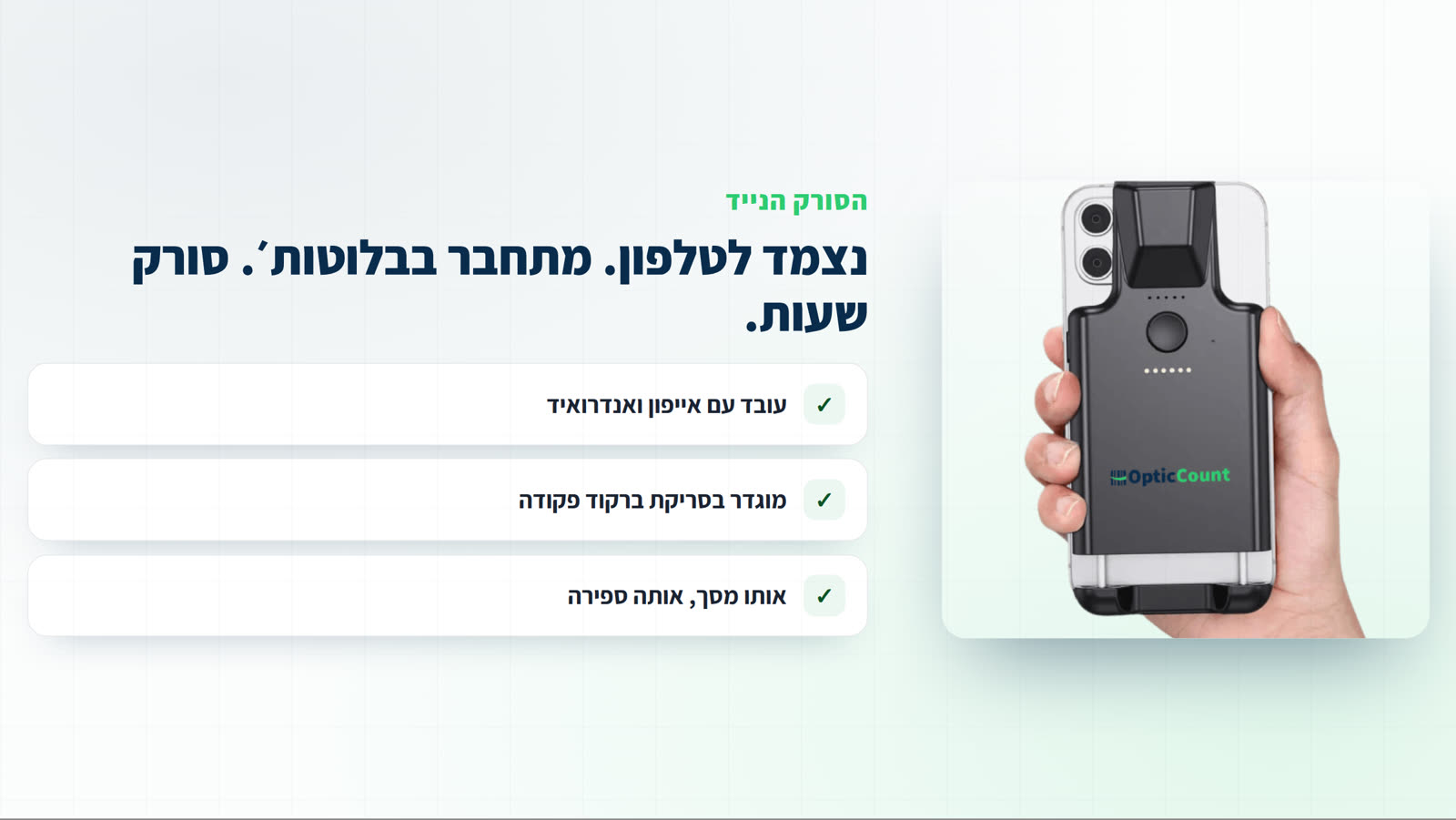
What it actually is
A light, slim barcode scanner that clips to the back of a smartphone and connects to it over Bluetooth. Once paired, the phone behaves like a terminal: press the trigger, the barcode lands in the identifier field in the app, and the item is counted. Same screen, same count, same data in the cloud.
It works with both iPhone and Android, and needs nothing installed beyond the initial Bluetooth pairing.
When the camera is enough, and when a scanner earns its place
Most counts start and end with the phone camera, and that is perfectly fine: it is accurate, it costs nothing, and every worker already carries one. The difference starts to show when scanning runs long.
- A count of a few dozen to a few hundred items: the camera is comfortable and fast enough.
- Hours of continuous scanning in a warehouse or on count night: the scanner shortens the time per item and tires the hand less.
- Working at height or in the cold: pressing a trigger beats aiming a camera.
- A mixed team: some can scan with cameras and some with scanners, in the very same count.
Weighing rented handhelds as well? Rented handhelds vs. counting from a phone, head to head
Configured with a single scan
The scanner has no menus and no settings screen. Instead it is configured by scanning a command barcode: scan a particular barcode, and the scanner changes a setting. The most useful one raises the data transfer rate to the phone to its maximum, and it is worth scanning before a big count.
The full command list comes in the manual supplied with the scanner, and if something does not behave as expected, we are here.
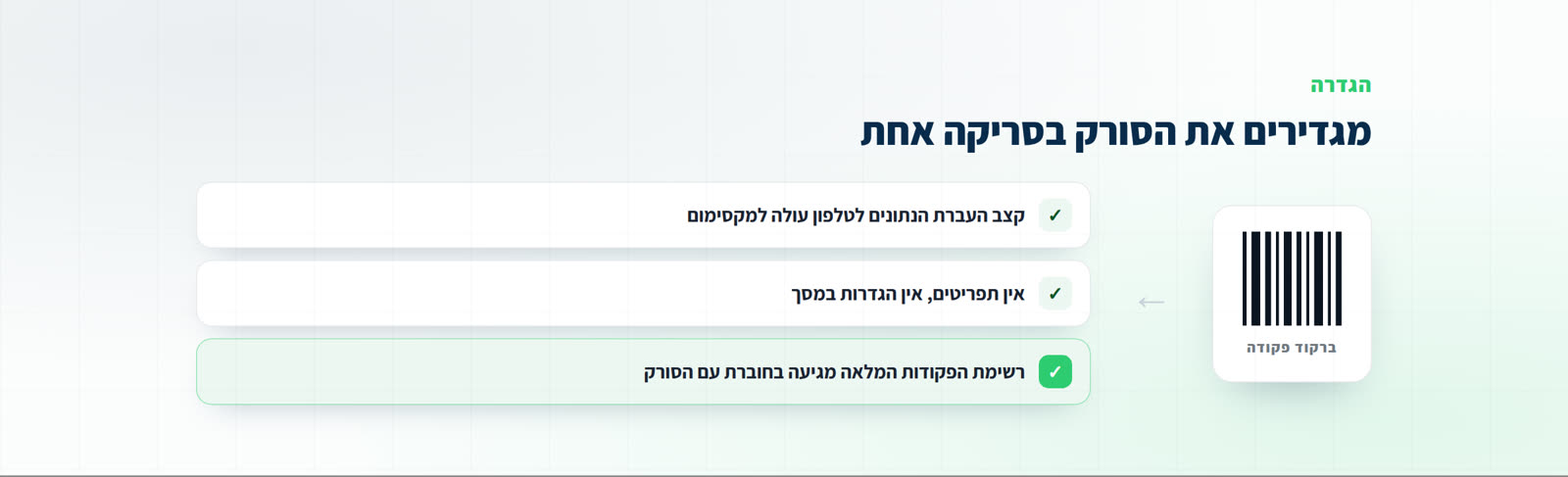
Before a count night, scan the fast-transfer barcode and check the scanner is charged. Two minutes that save frustration halfway through.
And the data side
Nothing changes on the data side. Scans save into the same count, stamped with who scanned and when, and appear on the management screen live exactly like camera scans. The final report is identical too: a clean Excel file, or an export in your ERP's template.
Common questions
Does the scanner connect to any phone?
It pairs over Bluetooth with iOS and Android devices, and the clips fit a wide range of models.
Do we need a scanner to use the system?
No. You can count entirely with the camera. The scanner is a comfort upgrade for people scanning for many hours.
Can scanners and cameras mix in one count?
Yes. Part of the team on scanners, part on cameras, and everything lands in the same list and the same report.
Where is the list of configuration commands?
In the manual supplied with the scanner. The one worth knowing sets the data transfer rate to the phone to the fastest option.